SPARCRequest Wiki
SPARCRequest v1.7.0 New Features and Fixes (open source)
SPARCRequest Version 1.7.0 New Features
- (SPARCRequest, SPARCDashboard, SPARCCatalog, SPARCFulfillment & SPARCReport) External Affiliate Users Re-routing
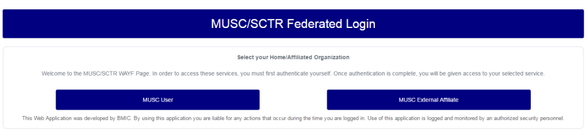
The login page, for all SPARCRequest modules, changed to utilize the new WAYF page (shown below). MUSC users continue to log in using their MUSC NetID and password; MUSC External Affiliate users log in using their External Affiliate NetID through the 'MUSC External Affiliate' link. To request an 'External Affiliate NetID' for someone outside of MUSC needing access to SPARCRequest, CITI training, REDCap, or eIRB, select the 'External Affiliate NetID Request' service from MUSC/ SCTR/External Affiliate NetID on the SPARCRequest homepage and complete the associated REDCap link. The previous popup login window is now configurable to be turned on/off for the SPARCRequest Open Source Community.

- (SPARCRequest) New Page Header
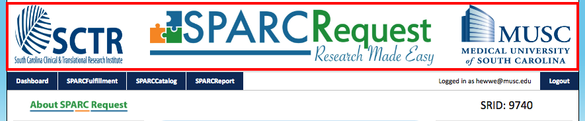
For branding, the SPARCRequest logo was updated and moved it into the page header section. Styling of the page header was updated as well (shown below).
- (SPARCRequest) Navigation Bar Made Configurable
The SPARCRequest NavBar buttons are configurable, allowing other institutions to pick and choose which modules to display on the customized NavBar.

- (SPARCRequest) Feedback Button Configurable
The 'Feedback' button on the right-side panel is configurable. The popup window can be turned on/off.
- (SPARCRequest) Protocol ID (SRID) Added on Every Page
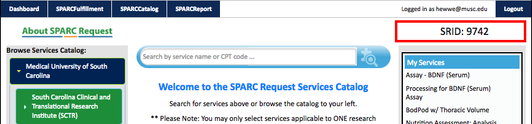
Once a protocol has been generated, the SPARC protocol ID (SRID) is shown on the top right corner of every SPARCRequest page (shown in the screenshot below).
- (SPARCRequest) Step 1 IDE# / HDE#/ HUD# Information
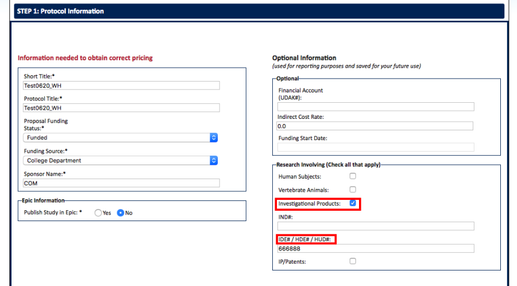
On SPARCRequest Step 1 (Protocol Information) page "Investigational Products" section, the previous label for "IDE#" has changed to collect the IDE#, HDE#, and HUD#, which will be pushed to Epic.
- (SPARCRequest) Fixed Step 1 Epic Validation Bug
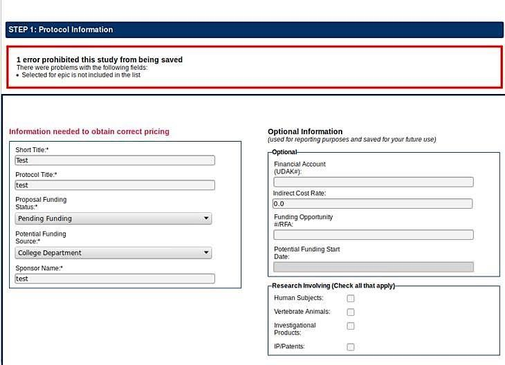
For those Open Source members who are not using the Epic interface, the bug on the Step 1 (protocol information) page, which was not allowing users to proceed (error message shown below) because of epic validations has been corrected.
- (SPARCRequest) Step 1 Authorized User Requester Default
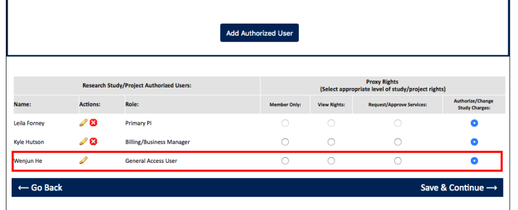
On Step 1 (Add Users) page, if the requester forgot to add himself/herself to a study/project, he/she is now defaulted as a "general access user" and added to the study/project by the system with "authorized/change study charges" rights.
- (SPARCRequest) Fixed floating Icon Bug on Step 2A
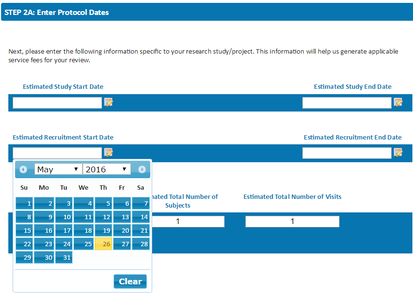
The bug related to the floating 'i' information icon besides 'Arm Name' that occasionally blocked dates on the calendar when viewing Step 1A has been corrected (no longer seen shown below).
- (SPARCRequest) Fixed Bug About Total Direct Costs Calculation on Step 2B
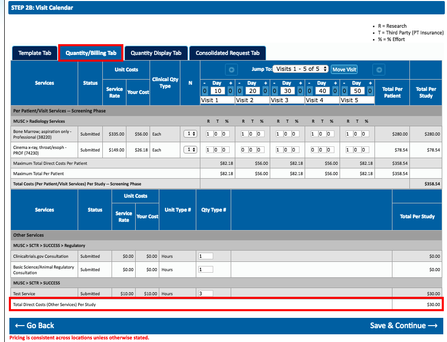
The total direct cost bug which caused the costs to not update when users switched tabs on the Step 2B Visit Calendar page and changed the Quantity Type # has been corrected.
The bug causing the wrong display of total direct costs, when the entered unit # exceeds the unit maximum value, has been fixed as well (in SPARCCatalog).
- (SPARCRequest) Step 2C Subsidy Information Page
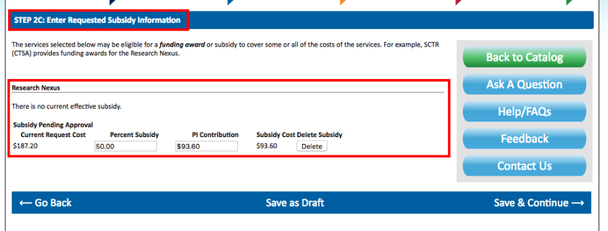
If services have been requested that are eligible for a subsidy (set up in SPARCCatalog), the Step 2C (Subsidy Information) page will show up. This page shows the current effective/approved subsidy for the study/project, as well as the requested/pending subsidy request. The requester can also add a subsidy from this page.
- (SPARCRequest) Step 4 System Satisfaction Survey Multiple Submission Prevented
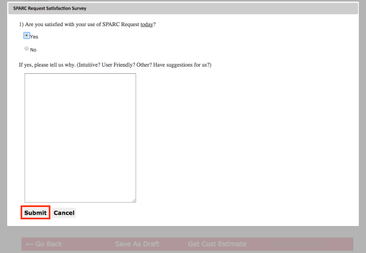
We have disabled multi-click on the 'Submit' button for the SPARCRequest Satisfaction Survey to prevent duplicated survey entries.
- (SPARCRequest & SPARCDashboard) Requester User Role(s) and Right(s) Default
If the requester does not add themselves to the study/project as an authorized user, the system defaults him/her to a 'General Access User' with 'Authorize/Change Study Charges' rights.
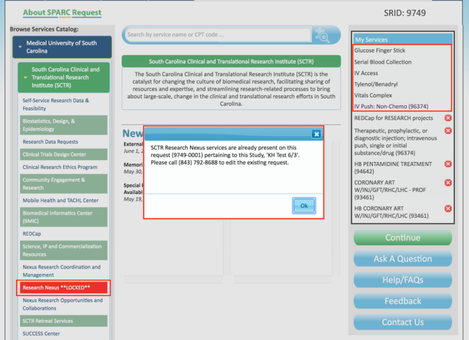
- (SPARCRequest & SPARCDashboard) Research Nexus Lock New Configuration
On SPARCDashboard, the 'Modify Request' button, when clicked, will lead the user back to the SPARCRequest shopping cart page with all previously requested services in the cart.
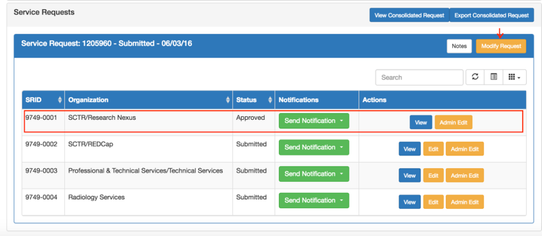
When the existing request contains services picked up or considered in an active status by Research Nexus, the request is 'locked'. The services will show up in your shopping cart as un-editable (without the 'X' sign), (as shown in the screenshot below). The Research Nexus core also has a 'LOCKED' indicator on the service catalog, as well as a popup window which displays the contact information when clicked on.
- (SPARCRequest & SPARCDashboard) Request Status and System Generated Emails Reconfiguration
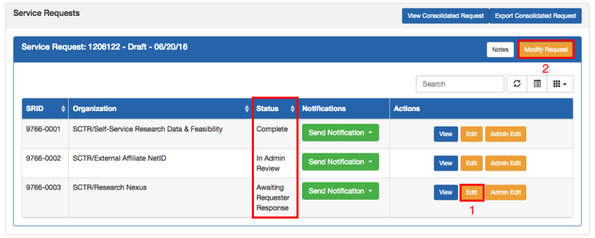
For requests under different statuses, this new release of SPARCRequest has some advanced features to help with the process, notification, and communications between requesters and service providers.
- By clicking the "Edit" button on the SPARCDashboard, the requesters are able to edit a single request and re-submit, with the corresponding service provider(s) notified.
- By clicking the "Modify Request" button on the SPARCDashboard, the requesters are able to edit and re-submit all of the previously requested services, with all of the listed service providers notified.
- If the requests are already under "Submitted" status, when clicking "Modify Request" and going through SPARCRequest Step 1-5 to re-submit, only the modified request (with service addition/deletion) will be re-submitted and the corresponding service providers notified.
- Any modified request with service addition/deletion is automatically changed to "Draft" status.
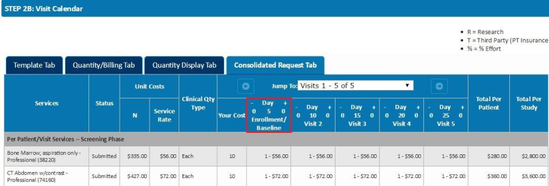
- (SPARCRequest & SPARCDashboard) Solved Long Visit Name Overlapping Problem
The issue of long visit names overlapping in the display has been resolved by wrapping the text.
- (SPARCDashboard) New Consolidated Corporate Study Budget Report
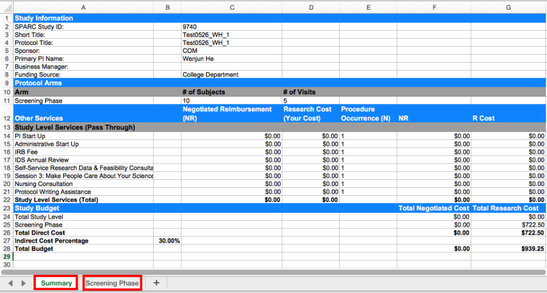
The "Export Consolidated Request' report has been reconfigured; it provides an interactive 'Consolidated Corporate Study Budget'. The report is located on the Dashboard from the 'Export Consolidated Request' button.
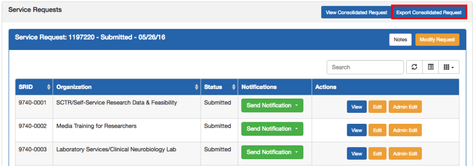
As shown above, the general protocol information and the protocol-level services (including one-time-fee services) are listed in the 'Summary' tab, while per-patient-per-visit services related information is listed on a separate tab named after each Arm. This report exports the hospital rate(s) and research rate(s) for each of the services and allows users to enter the Negotiated Reimbursement rate with preloaded formulas to generate the budget calculations. Users must be mindful when dealing with pre-populated excel formulas to ensure they are not overwritten, or deleted, while adding and removing services to create a full study budget.
- (SPARCCatalog & SPARCDashboard) Fulfillment checkbox
The "Send to Fulfillment" button will only show on the request(s) for an organization that has SPARCFulfillment set up in SPARCCatalog. Otherwise, the "Not enabled in SPARCCatalog" indicator shows up in the Fulfillment column of the request.


- (SPARCCatalog) EAP ID Added in Epic Interface Box
In SPARCCatalog and SPARC database, an "EAP ID" field has been added into the "Epic Interface" section, which provides a unique identifier to link and maintain hospital and professional charges with those services and prices in Epic.

- (SPARCReport) Styling and Framework Upgrades
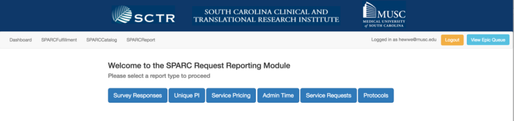
Upgrade to the design and framework for the SPARCReport module in order to remain in sync with the bootstrap upgrades. This included adding the navigation bar, the login/logout button, revamp the date picker, etc.
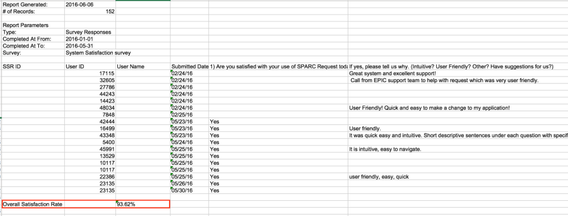
- (SPARCReport) Overall Satisfaction Rate Added to System Satisfaction Survey Report
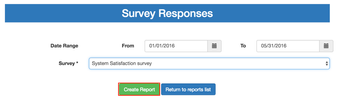
Overall satisfaction rate has been added to the System Satisfaction Survey report, as shown in the excel spreadsheet below.
List of Programming Changes with Links to GitHub
SPARCRequest v1.7.0:
- (Feature/cas) Rails 4 & Devise: Unpermitted parameters when creating an account View commit
- Feature/assets View commit
- Hotfix/selected for epic View commit
- Added require for survey submit JS file View commit
- Make feedback button configurable View commit
- Export Consolidated ReportReconfiguration View commit
- Define Navbar links in application.yml View commit
- Outside user database cleanup View commit
- Show in Fulfillment configuration change View commit
- 'Add Service' button pull right enhancement View commit
- Step 2 study calendar word-wrap fix View commit
- Small change to the programs controller View commit
- Fixed old procedure code breaking line items controller View commit
- Fixed max dollar cap amount display bug in subsidy message View commit
- Ruby script for updating copyright language View commit
- Fixed misspelled constant for Shibboleth setting View commit
- Added satisfaction rate to the system satisfaction survey report View commit
- Added "EAP ID" to Epic box View commit
- Streamlined bootstrap dashboard View commit
- Remove full text index and alter search (query scope) View commit
- Bootstrap user authorization bug fixes View commit
- Display SRID on SPARCRequest pages View commit
- SPARCRequest page header and root realignment/Styling View commit
- Fixed bootstrap dashboard bug: protocols filtered by admin/super user organizations View commit
- Fixed calculation bug for SPARCRequest Step 2B one-time-fee total View commit
- Fixed Step 2B calendar misalignment bug View commit
- Removed the flash messages from request process View commit
- Service Calendar Spec Fix View commit
- User details authorized user bug and other cleanup View commit
- Bootstrap Dashboard: increasing user search results returned to 100 View commit
- Fixed bootstrap Dashboard notification list inconsistency View commit
- Bootstrap Dashboard: add protocol id to notifications View commit
- Made the bootstrap dashboard timeline start and end dates editable View commit
- Fixed identity creates project spec View commit
- Dashboard: default admin view to admin organizations View commit
- Dashboard: fixed view consolidated request dropdown bug View commit
- Dashboard: decrement both badge and tab notifications count when opening a message View commit
- Dashboard: admin approval fix View commit
- Dashboard: fixed epic questions bug after bootstrap merge View commit
- SPARCRequest: fixed service calendar over qty_max bug View commit
- Fixed error clicking 'edit original' View commit
- Dashboard: fixed Step 4 calendar misalignment bug View commit
- Dashboard: Protocol Permissions Refactor View commit
- Dashboard: fixed saved search filter function View commit
- Dashboard: fixed list of per-patient-per-visit services display View commit
- Dashboard: admin approval fix II View commit
- SPARCRequest: more fixes to Step 2 calendars View commit
- SPARCRequest: Step 3 changed 'Add Request Note' to 'Add Note' View commit
- Fixed the bug where documents no longer have a SSR ID View commit
- Needed to pass in in_dashboard variable View commit
- Dashboard: move core filter View commit
- Dashboard: fixed called capitalize on nil class bug View commit
- Dashboard: fixed "Add Visit" Button being disabled in the JavaScript bug View commit
- Dashboard: epic queue bootstrap View commit
- Dashboard: Modify Request (Edit Original) Button Rework View commit
- Fixed Review Submit Spec View commit
- Dashboard: Remove (Commented Out) 'Compose Message' Button View commit
- Dashboard: fixes to Hollings Report (aka Export Consolidated Request) View commit
- Dashboard: Study Level Activity Add Validation to 'Time' Data View commit
- Dashboard: fixed more authorized user bugs View commit
- Dashboard: open previous Study Schedule Tab content on refresh View commit
- Dashboard: fixed SSR 'Edit' Button Bugs View commit
- Dashboard: fixed requests button bug View commit
- SPARCReport: bootstrap reporting View commit
- Dashboard: fixed subsidy method which could divide by zero View commit
- Dashboard: Moved study phase to correct position View commit
- Dashboard: Hid export buttons View commit
- Dashboard: send to fulfillment text change View commit
- Dashboard: added validations to line item visits subject count View commit
- Dashboard: fixed Locked SSR Bugs View commit
- Dashboard: update fixes to protocol authorization bug(s) View commit
- Fixed logic for document errors View commit
- SPARCRequest: added the requester as an authorized user by default View commit
- Dashboard: hide draft SSRs (SR, Protocol) for service providers View commit
- Dashboard: change SLA default columns View commit
- Dashboard: update layout.scc.sass View commit
- Dashboard: changed title of 'Messages' button to 'All Notifications' View commit
- Dashboard: changed 'IDE #' to 'IDE# / HDE# / HUD#' on Protocol Information page View commit
- Dashboard: fixed calendar bug View commit
- Dashboard: logout Button / Dashboard Navbar Fix View commit
- Dashboard: added custom sorter for dates on dashboard bootstrap tables View commit
- Dashboard: admin protocol filter update View commit
- Dashboard: organization filter reconfiguration View commit
- SPARCReport: fixed date picker View commit
- SPARCRequest: fixes to catalog accordion View commit
- Refactor js from pppv calendar to js file View commit
- SPARCDashboard: Study level activity add validation to time data View commit
- SPARCDashboard: quantity billing r/t validation fix View commit
- spec fixes View commit
- Brought back IND on Hold checkbox and display if a number is in IND View commit
- Saw protocol information change ide label - new PR for Travis View commit
- Change admin edit SLA fulfillment labels v2 View commit
- SLA qty requested not saving View commit
- Changed NCT# label in SPARCRequest and SPARCDashboard and added styling View commit
- Subsidy validation bug View commit
- Admin Protocol Filters to Radio buttons View commit
- Hide Fulfillment Buttons Column Enable/Disable in Show Columns View commit
- SPARCReport: fixing display bug View commit
- Added the abbreviations and CPT codes to the search results View commit
- SPARCDashboard: Organization filter for general users View commit
- SPARCDashboard: Service Provider Hidden SSRs Rework View commit
- Fix adding duplicate users when creating new protocol View commit
- Validate answers for system satisfaction survey View commit
- Attempt at fixing status changes again View commit
- Updating how statuses are locked and what is sent View commit
- Fixed label in en.yml View commit
- SPARCDashboard: Fixed bug related to old Epic questions View commit
- Subsidy validate max dollar cap View commit
- Status fixes View commit
- Filtering first_draft SSRs on Protocol, Service Request, and SSR Level View commit
- Fix Safari Export Consolidated Request Filename Bug View commit
Copyright © 2011-2025 MUSC Foundation for Research Development